FREE Shipping on orders over £50

info@1clickprint.com
01909 561888
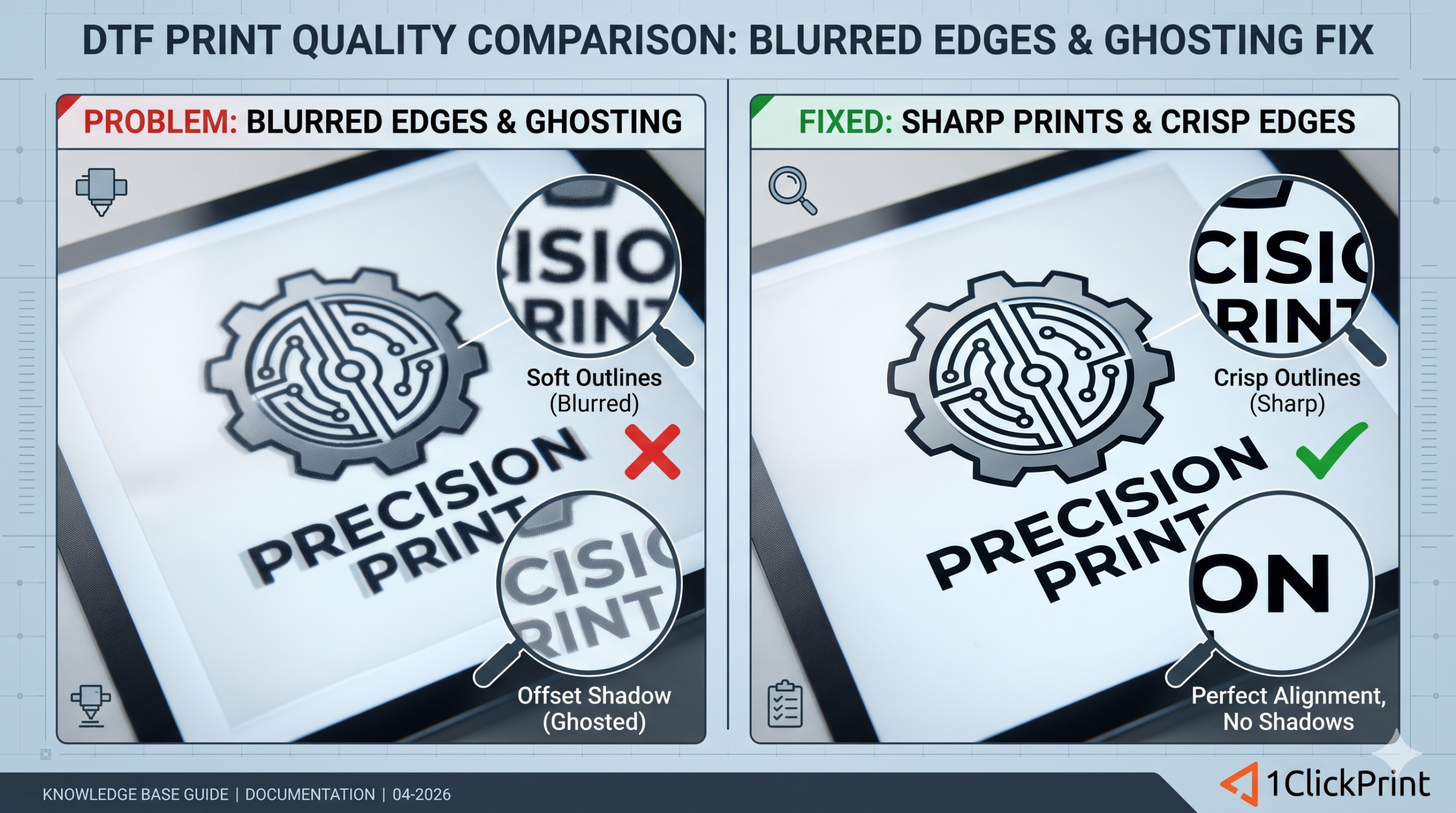
There is nothing more frustrating than finishing a long DTF run in the workshop, sitting down with a cuppa, and realising your designs look like they’ve been printed through a fog. In the UK, where temperature and humidity swings can mess with ink viscosity and static, “blurry” prints are a common headache.
However, “blurriness” is a broad term. It could be a mechanical fault, a dirty component, or—let’s be honest—dodgy artwork. Here is how to diagnose and fix the most common causes of ghosting and soft edges.
Before you start taking your printer apart, look at your file. If you’ve pulled a thumbnail off Google or a low-res screengrab from a client’s WhatsApp, no amount of cleaning will make it sharp.
The Problem: Low-resolution files (72 DPI) look “blocky” or “pixelated” when scaled up to A3 or A4. The printer is simply faithfully reproducing a blurry image.
The Fix: Always aim for 300 DPI at the actual print size. If the original is rubbish, use an AI Upscaler or recreate the vector in a programme like Illustrator or CorelDraw.
If your print has a fuzzy white “glow” or jagged bits around the edges, the culprit is likely your transparency mask.
The Problem: When you use a “Magic Wand” tool to delete a white background, it often leaves a 1- or 2-pixel semi-transparent fringe. The RIP software sees these “stray” pixels and tries to print white ink under them, creating a messy edge.
The Fix: In Photoshop, use Select and Mask to contract (choke) your selection by 1–2 pixels. In your RIP software (like Cadlink), ensure your “White Undercolour Breath” or “Choke” is set to at least 1 or 2 pixels to pull the white ink slightly inside the colour boundary.
If you see “hairs” or tiny lines shooting out from the side of your design, your printhead is likely “deflecting.”
The Problem: A tiny bit of dried ink or a stray fibre from the film is stuck to the bottom of the printhead. As the ink fires, it hits this debris and “sprays” sideways instead of straight down.
The Fix: Perform a manual “under-head” clean. Use a lint-free swab soaked in DTF cleaning solution and gently wipe the sides of the printhead (the metal frame), not just the nozzle plate itself. Here’s a video on how to correctly clean your printer: https://www.dtf-printers.co.uk/how-to-clean-a-dtf-printer/
The encoder strip is the clear plastic band running across the printer. If it’s dirty, the printer “loses its place.”
The Problem: A fine mist of ink or grease on this strip causes the carriage to “stutter” or miscalculate its position, leading to a faint double-image (ghosting).
The Fix: Unplug the printer from the mains. Dampen a lint-free cloth with 70% Isopropyl Alcohol (IPA). Gently “pinch” the strip and wipe it in one smooth motion. Be careful: Don’t scrub, or you’ll rub off the tiny timing marks. Here’s an article on how to clean your encoder strip: https://www.dtf-printers.co.uk/cleaning-the-encoder-strip/
Most UK DTF setups run “Bi-Di” (printing while moving both left and right) to keep up with orders. However, Bi-Directional calibration is REALLY sensitive to temperature changes.
The Problem: If the timing is out by even a fraction of a millimetre, the “left” pass won’t line up with the “right” pass. This creates a staggered, blurry edge on vertical lines.
The Fix: Run the Bi-Directional Alignment utility in your Printer Manager software. Print the test pattern, find the number where the lines are perfectly straight, and amend the current value by that amount.
| Symptom | Primary Suspect | Quick Fix |
| Blocky/Pixelated | Low-Res Artwork | Use 300 DPI files |
| White “Fringe” | Bad Background Removal | Increase “Choke” in RIP |
| Side Spray/Hairs | Dirty Printhead | Manual swab clean |
| Double Image | Dirty Encoder Strip / Alignment / Cold Machine | Wipe with IPA /Run Bi-Di Calibration / Allow machine to warm up |
| Staggered Edges | Alignment | Run Bi-Di Calibration |
