FREE Shipping on orders over £50

info@1clickprint.com
01909 561888
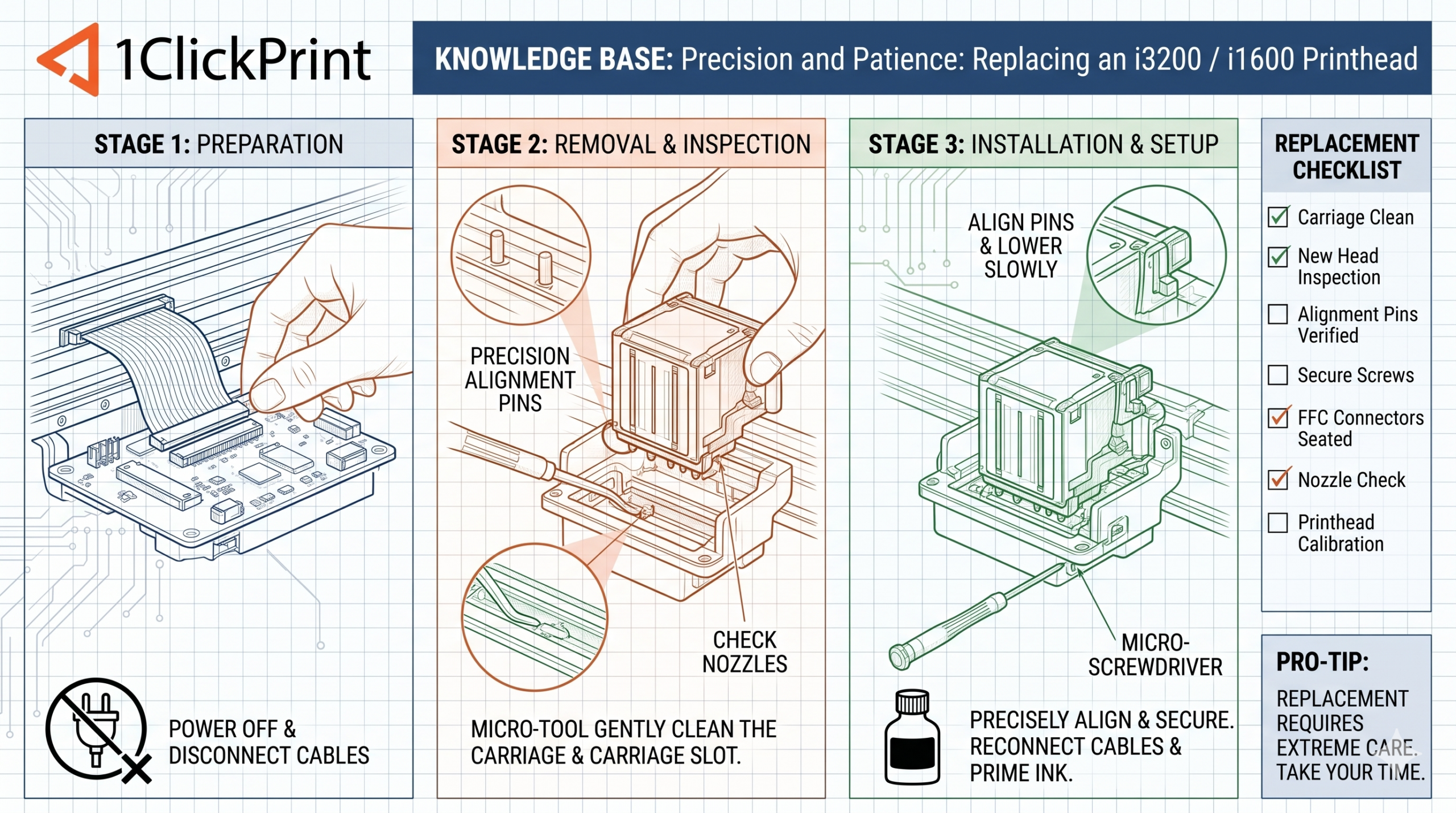
Replacing an Epson i3200 or i1600 printhead is the most “high-stakes” job in a DTF workshop. It is an expensive component, and the margin for error is razor-thin. One skewed cable or a single drop of stray ink can instantly “pop” the head and take the mainboard down with it.
If you are a technical user ready to perform a swap on your 42cm or 60cm machine, follow this “anti-short” protocol to ensure your new head survives its first power-up.
Before you even touch a screwdriver, you must eliminate all residual electricity in the system.
Power Down: Turn the printer off at the control panel, then flip the main switch at the back.
Pull the Plug: Physically remove the power lead from the UK mains socket.
The Wait: Wait at least 20 minutes. The capacitors on the mainboard hold enough charge to “fritz” a new head even when the machine is switched off. Use this time to clear your workspace and put on a fresh pair of nitrile gloves.
On an i3200 and i1600, the four ribbon cables plug into the sides of the head. Because the carriage is a tight fit, you won’t be able to unplug them while the head is still screwed down.
Before you loosen anything, take a marker pen or some small sticky labels and mark every single cable. If you mix these up during re-installation, the printer won’t know which signals to send where, and you have a high chance of damaging your machine.
Which Head: (e.g., Head A / Head B)
Which Side: (Left / Right)
Position: (Top / Bottom)
Dampers First: Carefully pull the dampers off the manifold. Use a 1ClickPrint Isopropanol wipe to clean any ink that drips onto the carriage frame. If ink gets into those side-mounted connectors, the head will likely be damaged.
Unscrew the Head: Loosen the three mounting screws. Only once the head is free can you carefully lift it slightly to gain access to the side ribbon cables.
Disconnect: Gently unplug the cables one by one, keeping them in their relative positions.
The most common cause of printhead damage during replacement is a short circuit caused by poorly seated cables or debris on the pins.
Inspect the Tips: Look at the silver pins on the ends of your ribbon cables. If they are folded, burnt, or have ink on them, replace the cables immediately. Do not risk a £1,000 head on a £5 cable.
The 1ClickPrint Clean: Even if they look clean, give the cable tips a quick, gentle wipe with a 1ClickPrint Isopropanol wipe to remove any finger oils. Ensure they are bone-dry before connecting.
Seating the Cables: Connect the cables while the head is still loose. They must go in perfectly straight. If a cable enters at an angle, the pins can bridge. You should feel a firm “seat”.
Mount the Head: Carefully lower the head into the carriage, ensuring the cables aren’t being pinched or stressed. Tighten the three screws until they are “finger-tight”—do not over-torque them.
Once the head is physically installed and the cables are verified, you need to “introduce” the new hardware to the software.
The Head ID: Every i3200 and i1600 has a unique “Head ID” or “Voltage Code” printed on a sticker on the side of the head.
Enter the Code: Open your BYHX software, navigate to the Realtime Settings, and enter the new ID. This ensures the board sends the correct voltage pulses to this specific piezo array.
Ink Charge: On the BYHX clean screen, do an ink fill and then a head clean to pull ink into the new head.
Nozzle Check: Run a nozzle check. If it’s clear, proceed to your “Head-to-Head” alignment. If not, repeat step 3.
| Step | Priority | Why? |
| Wait 20 Mins | Mandatory | Prevents residual voltage shorts. |
| Mark Cables | Essential | Prevents connecting “Top Left” to “Bottom Right.” |
| Unscrew First | Mandatory | Necessary to reach the side-mounted connectors. |
| 1ClickPrint Wipe | Critical | Cleans contacts and prevents “wicking” from debris. |
| Input Head ID | Mandatory | Corrects the firing voltage in BYHX. |
